
6. nodaļa
Templates
Templates for website content and bespoke content, and how to edit them.
A template defines how a newsletter looks and which inputs the composer offers. Templates can pull in website articles, hold entirely bespoke content, or mix both, so one system covers digests, announcements, invitations and any other e-mail you send regularly.
Website content or bespoke content
Every template declares its own fields. A field of type Articles lets editors pick articles from the site; the template then renders their titles, intro texts, images and links. All other field types (Text, Rich text, Image, URL, Colour palette …) hold content that has nothing to do with the website. You decide the mix:
- Content-driven: a monthly digest with a banner, a highlighted lead article and a list of further articles.
- Bespoke: an announcement with a heading, an image, a message and a button. No articles involved.
- Mixed: an editorial written for the newsletter, followed by the latest articles and an events box.
A fresh installation includes two starter templates that show both approaches: Article digest (articles) and Announcement (bespoke content).
The Templates screen
Open Components → Semantyca → Templates.
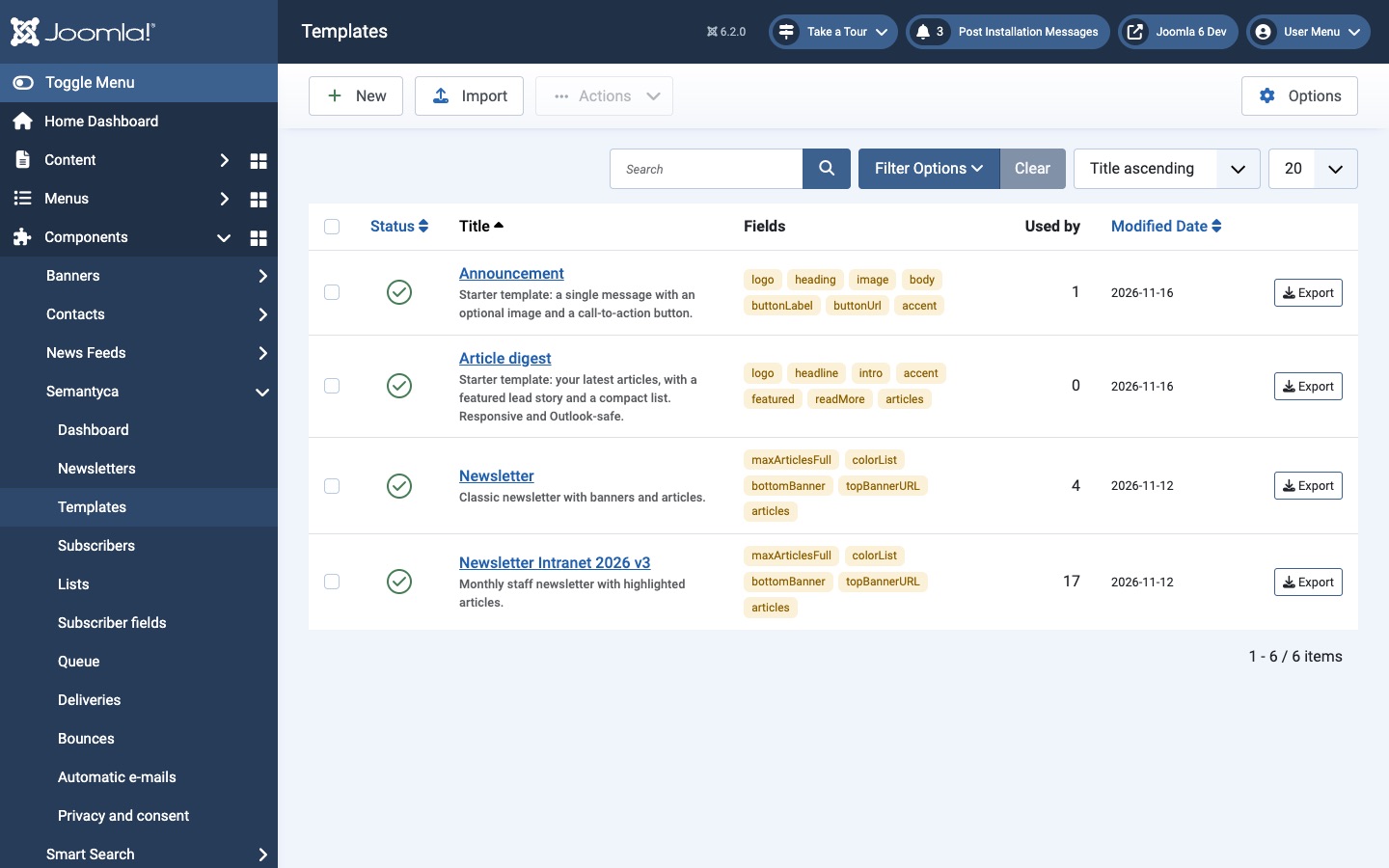
- Fields lists the variable names the template provides; Used by counts the newsletters based on it.
- Export (per row) downloads the template, including its fields, as a
.jsonfile you can import on another site. - Import uploads a Semantyca template file (
.json). Exports from the earlier Semantyca NM are accepted too. - Actions publishes, unpublishes or trashes the selected templates. Only published templates can be chosen in the composer.
Create or edit a template
- Click New, or click a template title.
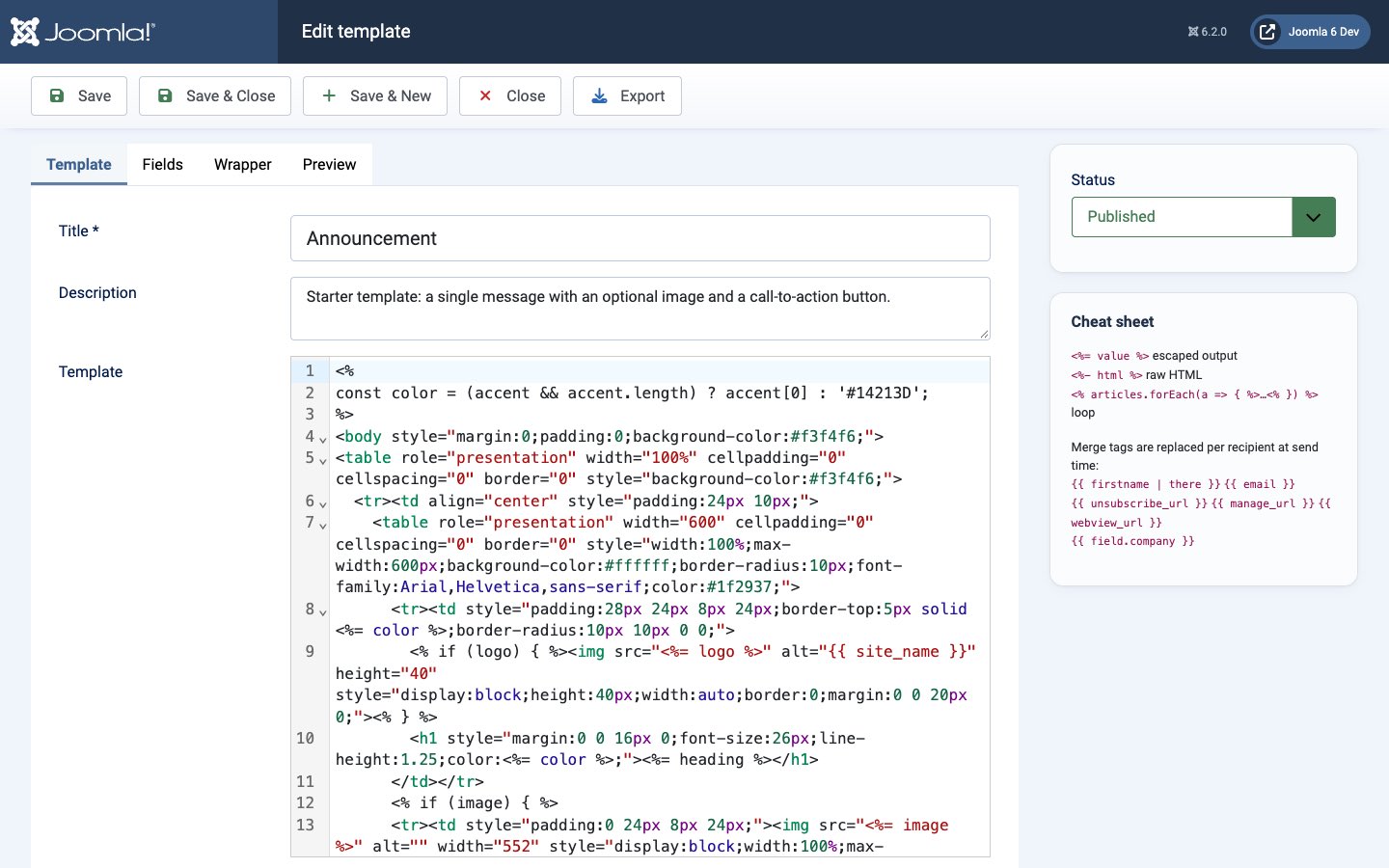
- On the Template tab enter a Title, a Description (shown under the template picker in the composer) and the template code.
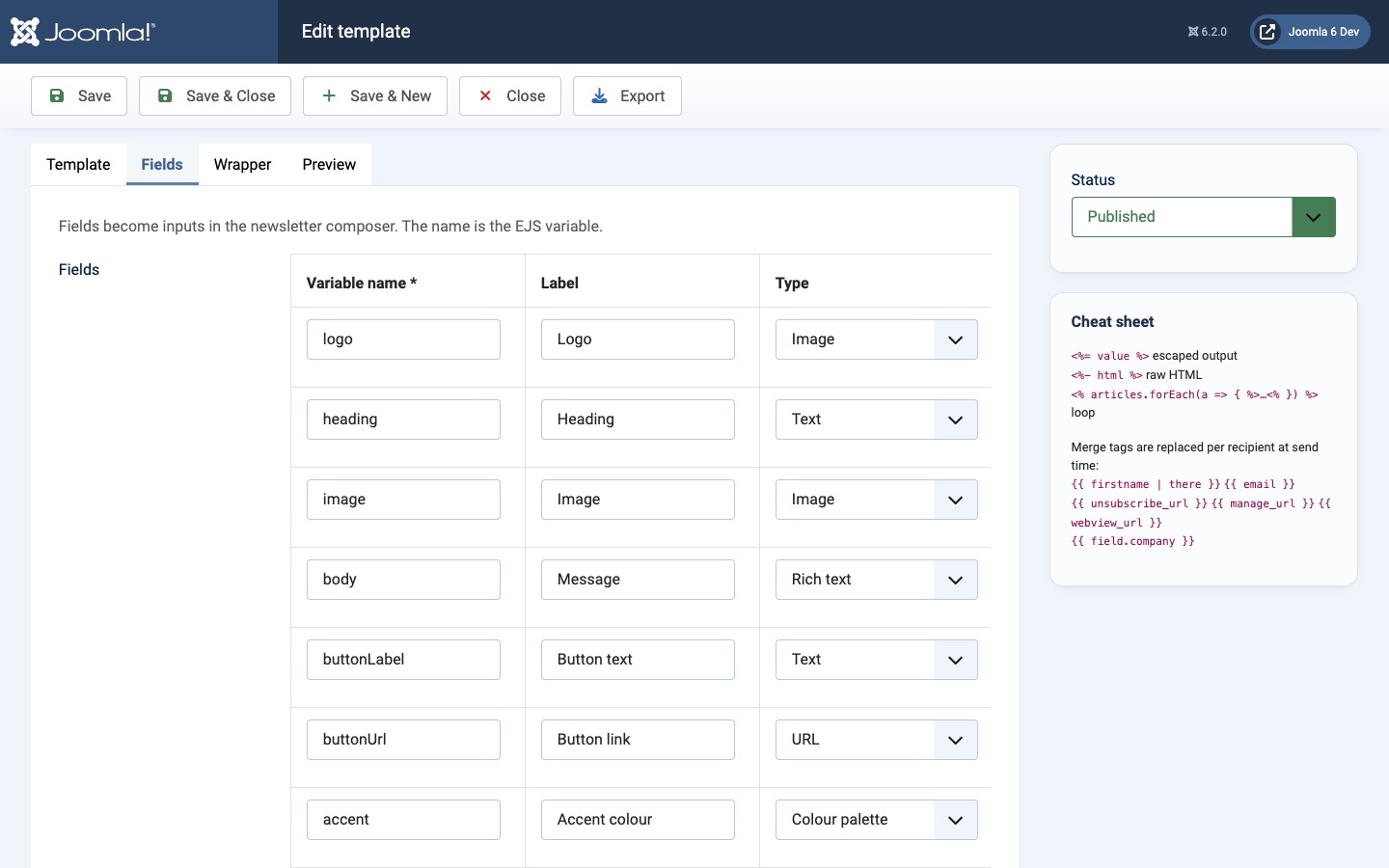
- On the Fields tab add one row per input the composer should show.
- Optionally enter an outer layout on the Wrapper tab.
- Open the Preview tab and click Refresh preview to render the unsaved template with sample articles and the field defaults.
- Click Save or Save & Close.
Fields
Each field becomes an input in the composer and a variable in the template code.
| Column | Description |
|---|---|
| Variable name | Name used in the code, for example heading for <%= heading %>. Use letters, digits and underscores, starting with a letter (it must be a valid JavaScript name). |
| Label | Caption shown in the composer. |
| Type | The kind of input (see below). |
| Default | Initial value for new newsletters. For a colour palette, list colours separated by commas, for example #003384, #AEC300. |
| Type | Composer input | Value in the template |
|---|---|---|
| Text | Single-line text | String |
| Multi-line text | Text area | String |
| Rich text | Visual editor with HTML view and merge-tag button | HTML string (output with <%-) |
| Number | Number | Number |
| URL | Web address | String |
| Image | Address with Choose image (Media Manager) | Image URL |
| Colour palette | Colour swatches with + Colour | Array of colour codes |
| Articles | Article picker | Array of article objects |
For the template syntax, the article object and the wrapper, see Template language reference.
Atjaunināts 16 novembris 2026