
3. nodaļa
Getting started
Your first newsletter in six steps and a tour of the dashboard.
This chapter takes you from a fresh installation to your first sent newsletter and explains the dashboard, Semantyca's start screen.
Your first newsletter in six steps
- Set the sender. Open Components → Semantyca, click Options and fill in From name and From e-mail on the Sender tab. Use an address on your own domain. Add your organisation's Postal address. See Options → Sender.
- Check privacy settings. On the Subscription tab choose your Privacy policy page and review the Consent text. Save.
- Create a list. Open Lists, click New, enter a title and switch on Public if visitors may join it. See Lists.
- Get subscribers. Import a CSV file, add people by hand, publish a subscription form or module, or connect the list to Joomla user groups. See Subscribers and Front end.
- Compose. Open Newsletters, click New newsletter, choose a template, add articles or fill in your own content, pick the lists on Audience & sender and click Save & review. See Composing a newsletter.
- Test and send. On Review and send send yourself a test, check the pre-send checks and click Send to … recipients. Follow progress on the Queue. See Review and send.
For predictable delivery, add a real cron job for Joomla's scheduler. See Scheduler and command line.
The dashboard
Components → Semantyca → Dashboard gives an overview of your audience, recent results and the health of your set-up.
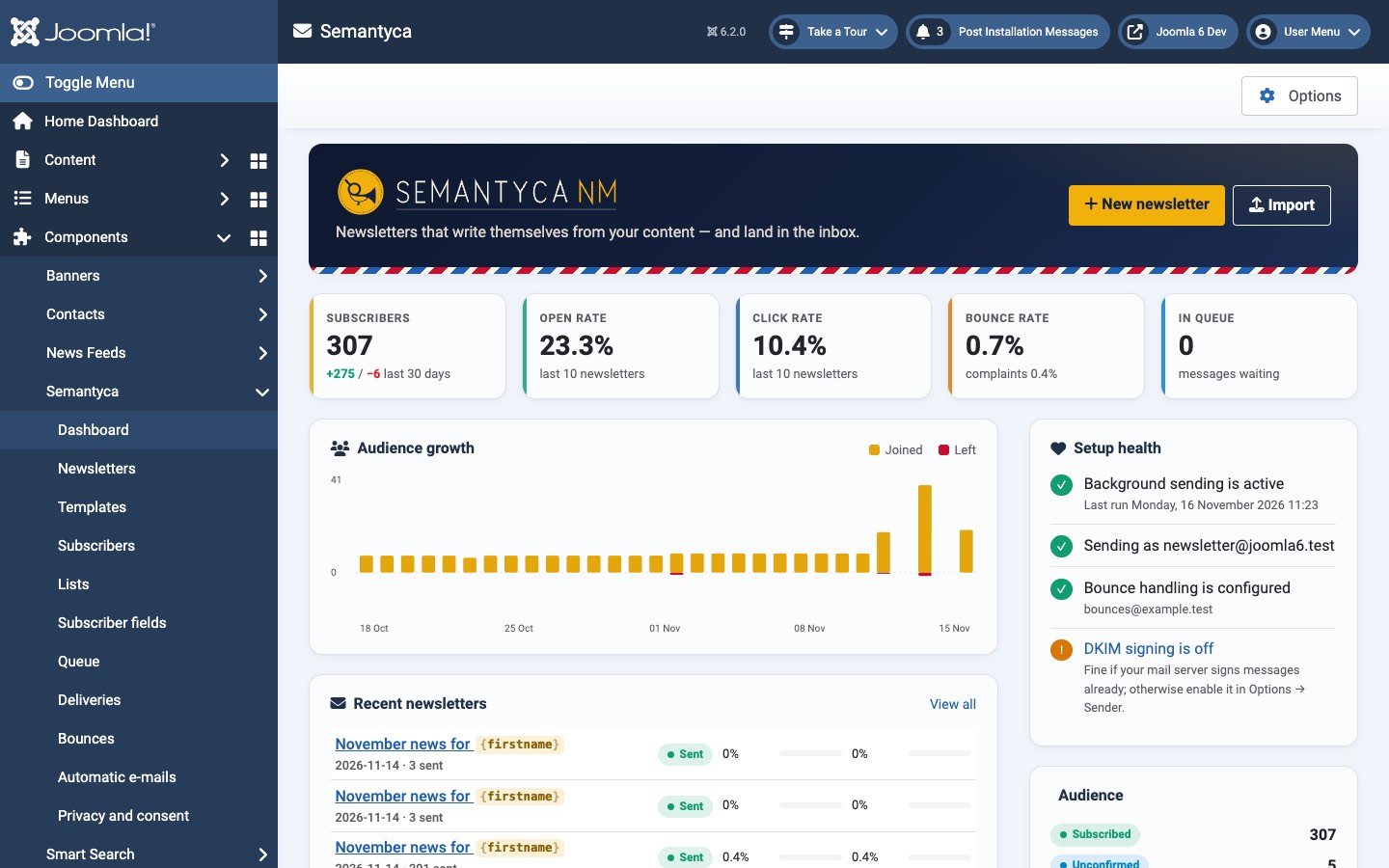
- New newsletter / Import
- Shortcuts to the composer and to the subscriber import.
- Key figures
- Subscribers (with people who joined and left in the last 30 days), Open rate, Click rate and Bounce rate of the last 10 newsletters, and the number of messages In queue.
- Audience growth
- Daily bars of people who Joined and Left.
- Recent newsletters
- The latest sent newsletters with open and click rates. Click a subject to open its report; View all opens the newsletter list.
- Setup health
- Checks whether background sending runs, which sender is used, whether bounce handling and DKIM signing are configured, and the licence status. Items that need attention link to the right setting.
- Audience
- Number of subscribers per status.
When Semantyca finds data from an earlier Semantyca NM installation or from AcyMailing on the same site, the dashboard also shows an import offer. See Import from AcyMailing and Upgrading from Semantyca NM.
Admin menu
| Menu item | Use it to |
|---|---|
| Dashboard | See key figures and setup health |
| Newsletters | Compose, review, send, duplicate and report on newsletters |
| Templates | Create, import and edit newsletter templates |
| Subscribers | Manage people, import and export, ask for reconfirmation |
| Lists | Manage lists and their link to Joomla user groups |
| Subscriber fields | Define custom subscriber fields (Joomla Fields) |
| Queue | Follow and control sending live |
| Deliveries | See every message, retry failed ones |
| Bounces | See bounces, test and read the bounce mailbox, edit rules and the suppression list |
| Automatic e-mails | Switch and test the confirmation, welcome and other automatic messages |
| Privacy and consent | GDPR checklist, reconfirmation, consent log and privacy-policy text |
Atjaunināts 16 novembris 2026