
7. nodaļa
Newsletters
The newsletter list, states and actions.
A newsletter combines content, an audience and a delivery. The Newsletters screen lists all of them, from drafts to sent issues, with their results.
The Newsletters screen
Open Components → Semantyca → Newsletters.
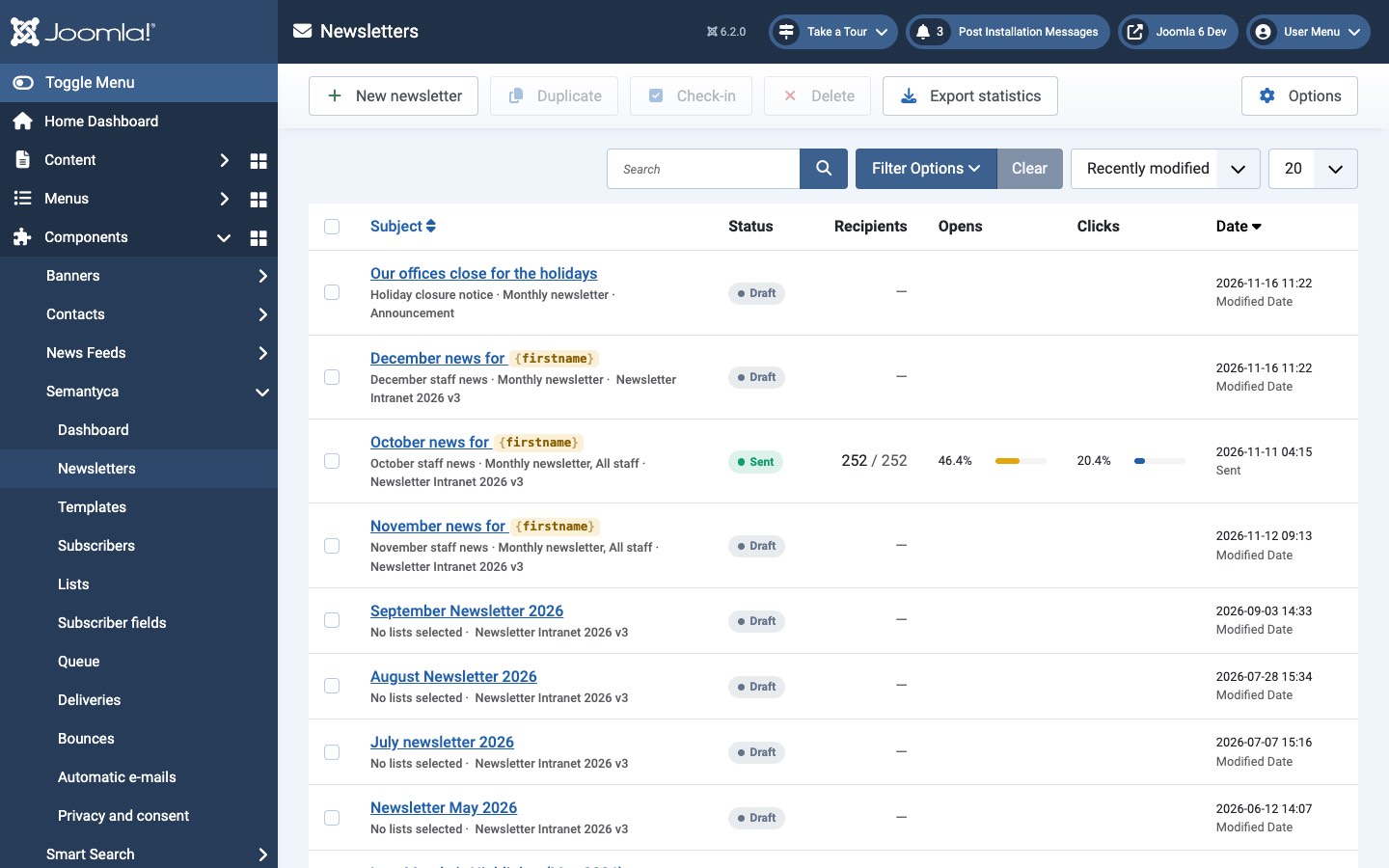
- Under each subject you see the internal name, the lists and the template.
- Recipients, Opens and Clicks are filled in once a newsletter is sending or sent.
- Click the subject of a draft to open the composer; click a sent newsletter to open its report.
- Filter by - State - and sort by Recently modified, Recently sent or Subject ascending.
Newsletter states
| State | Meaning |
|---|---|
| Draft | Being prepared. Can be edited freely. |
| Scheduled | Will start sending at the chosen date and time. |
| Sending | Messages are being sent. |
| Paused | Sending was paused and can be resumed. |
| Sent | All messages were processed. |
| Stopped | Sending was stopped; remaining messages were skipped. |
Once a newsletter has started sending it can no longer be changed. To send a corrected or repeated version, use Duplicate.
Toolbar actions
- New newsletter
- Opens the composer. See Composing a newsletter.
- Duplicate
- Copies the selected newsletters as new drafts named Copy of …, with the same content, lists and settings.
- Check-in
- Releases newsletters left locked by an editor who did not close them.
- Delete
- Deletes the selected newsletters together with their delivery and tracking data. A newsletter that is sending must be paused or stopped first.
- Export statistics
- Downloads a CSV of the newsletters as currently filtered (all pages), or only of the ticked rows. See Export statistics.
From draft to sent
- Compose the newsletter and choose its lists. See Composing a newsletter.
- Click Save & review, send a test and check the pre-send checks. See Review and send.
- Send now or schedule. Follow progress on the Queue. See Sending and the queue.
- Read the results in the newsletter report. See Reports and statistics.
- 7.1 Composing a newsletterBuild newsletters from articles, bespoke fields or freeform text.
- 7.2 Review and sendPre-send checks, test messages, sending and scheduling.
Atjaunināts 16 novembris 2026