
9. nodaļa
Reports and statistics
Newsletter reports, overall figures and the statistics export.
Every sent newsletter has its own report with delivery, engagement and audience details. The dashboard summarises recent results, and the Newsletters screen exports the figures as CSV.
The newsletter report
On the Newsletters screen click the subject of a sending or sent newsletter.
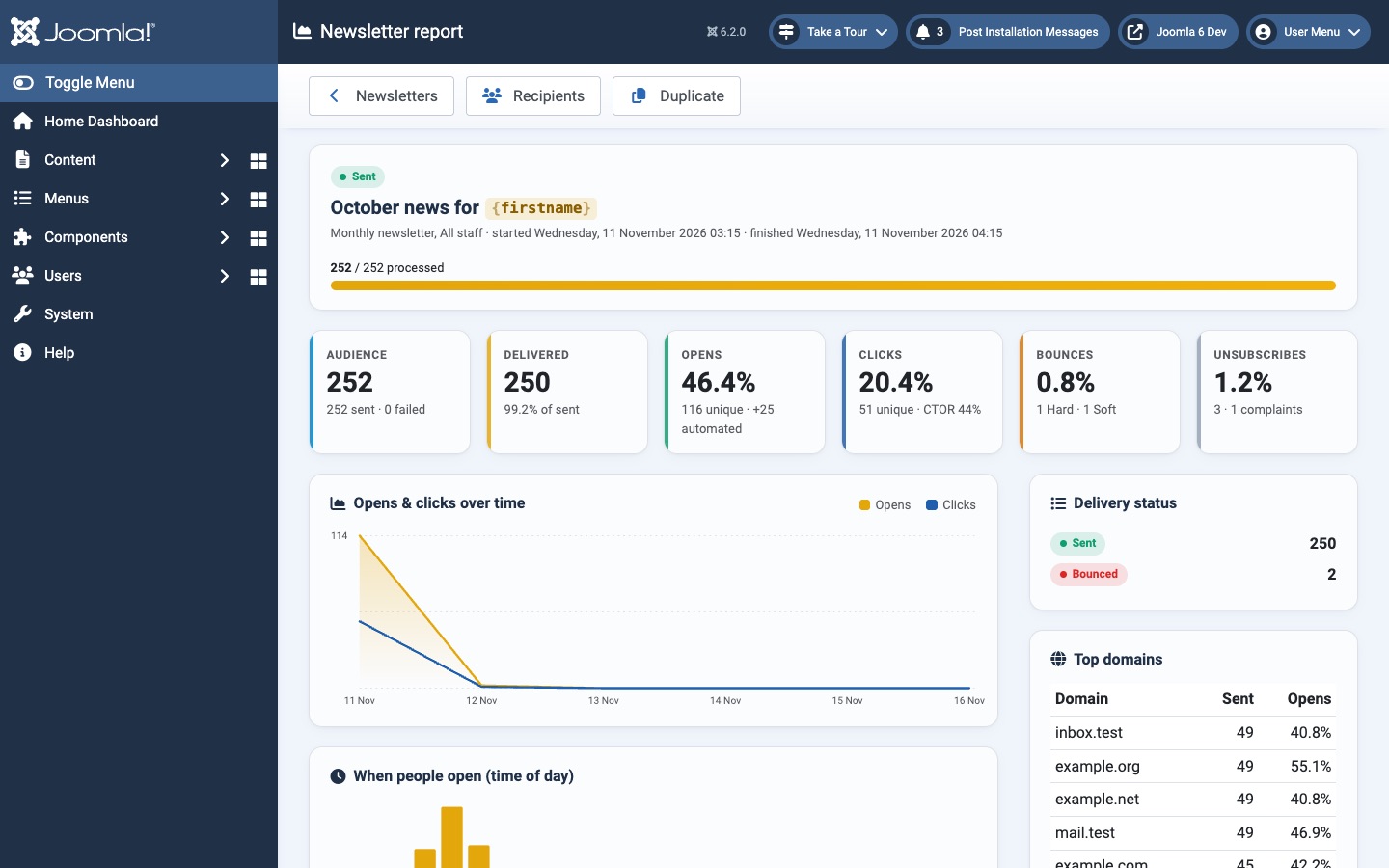
Key figures
| Figure | Meaning |
|---|---|
| Audience | Messages sent and failed. |
| Delivered | Sent minus bounced, and its share of sent messages. |
| Opens | Unique open rate and count. Machine opens (for example Apple Mail privacy protection) are shown separately as automated and not counted. |
| Clicks | Unique click rate and count, and CTOR (click-to-open rate: unique clicks divided by unique opens). |
| Bounces | Bounce rate with hard and soft bounces. |
| Unsubscribes | Unsubscribe rate, with spam complaints. |
Rates are calculated on delivered messages. With tracking set to Only with consent (EU), open and click rates are calculated on the recipients who allowed tracking; the report then says how many of them could be measured.
Charts and tables
- Opens & clicks over time
- Daily opens and clicks since sending.
- When people open (time of day)
- Opens by hour, useful for choosing the best sending time.
- Top links
- The most clicked links, with unique and total clicks.
- Delivery status
- Messages per status (sent, bounced, failed, skipped).
- Top domains
- Recipient domains with messages sent and open rate, useful to spot a provider that filters your mail.
- Mail clients / Devices
- Share of opens per mail client and device type.
- Preview
- Open preview in a new tab shows the newsletter as sent.
Toolbar: Newsletters returns to the list, Recipients opens the newsletter's deliveries (filter by engagement to see who opened or clicked), and Duplicate creates a new draft from this newsletter.
Overall figures
The dashboard shows the average open, click and bounce rates of the last 10 newsletters, audience growth over 30 days and the number of subscribers per status. Each subscriber's own opens and clicks are listed under Activity on the subscriber form.
Export statistics
- On the Newsletters screen, filter the list as needed, or tick the newsletters you want.
- Click Export statistics.
The CSV contains, per newsletter: audience, sent, failed, delivered, hard and soft bounces, unique opens and clicks with their rates, CTOR, unsubscribes and complaints. Without ticked rows, all newsletters matching the current filters are exported (all pages).
About open and click tracking
- Opens are measured with a tiny image, clicks with tracked links that redirect only to the original addresses in the newsletter.
- Many mail clients block images, so open rates are always an estimate; clicks are more reliable. A click also counts as an open.
- Tracking can be switched off per newsletter (Options tab in the composer), globally (Options → Sending) and per subscriber (Allow tracking). See Tracking consent.
- With Add UTM parameters on, tracked links carry
utm_source=newsletter,utm_medium=emailandutm_campaignfor your web analytics.
Atjaunināts 16 novembris 2026