
Chapter 5
Subscribers
Find, add, edit and update subscribers, and handle privacy requests.
The Subscribers screen lists every address Semantyca knows, with its status, lists and engagement. From here you add, edit, import, export and update people in bulk.
The Subscribers screen
Open Components → Semantyca → Subscribers.
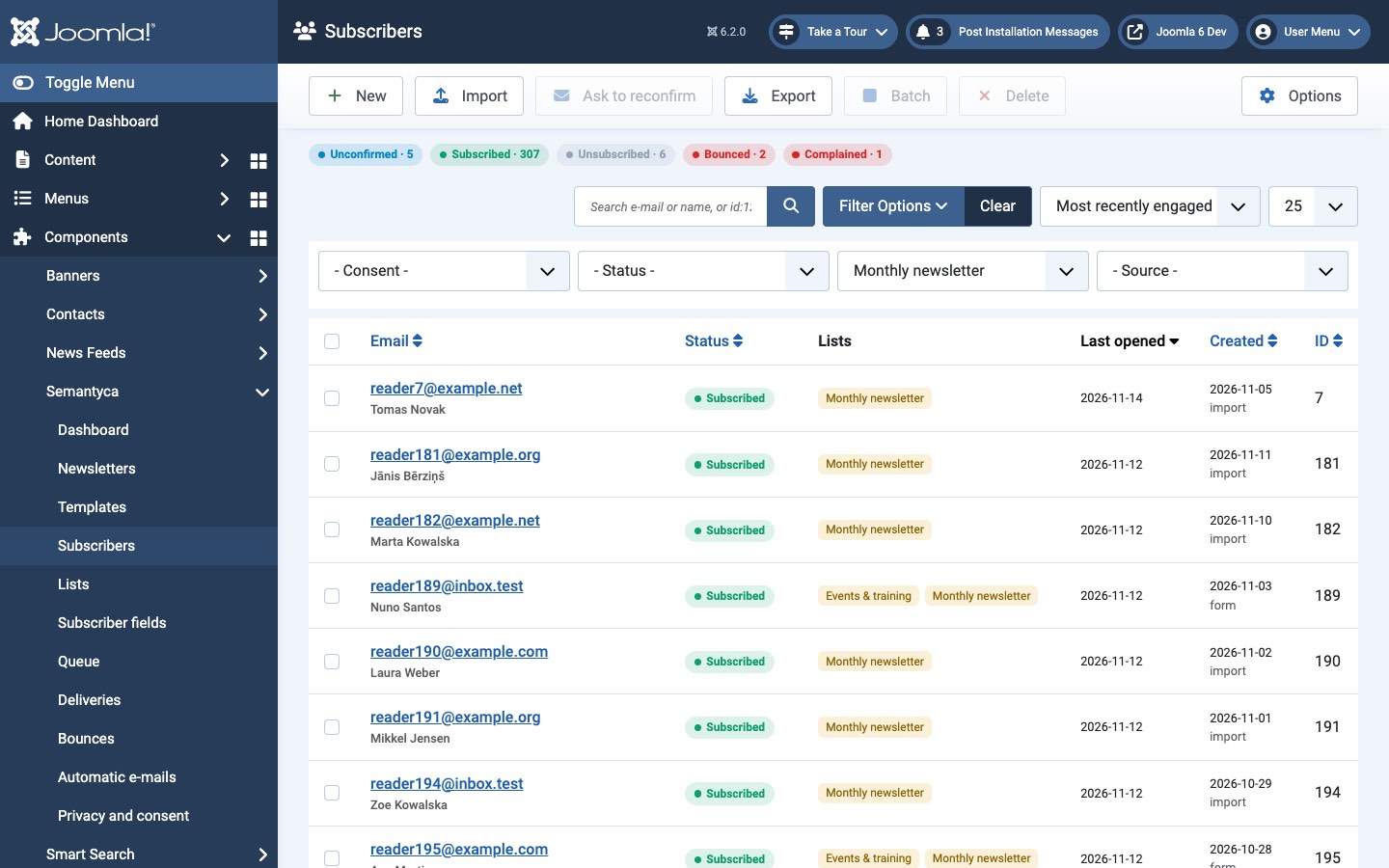
- The coloured counters above the filters (Unconfirmed, Subscribed, …) show how many people have each status. Click one to filter by it.
- Search by e-mail or name, or enter
id:123to find a subscriber by ID. - Filters: - Consent - (with or without proof of consent, reconfirmation pending, tracking allowed or not), - Status -, - List - and - Source - (subscription form, import, added by admin, user group, registration, API).
- A person icon after the name means the subscriber is linked to a Joomla account. + group lists means the person also receives lists through their Joomla user groups.
- Last opened shows the most recent open; Created shows the date and the source.
Subscriber statuses
| Status | Meaning | Receives newsletters |
|---|---|---|
| Subscribed | Active subscriber. | Yes |
| Unconfirmed | Signed up but has not confirmed by e-mail yet. Deleted automatically after the period set in Options → Privacy. | No |
| Unsubscribed | Left all lists. | No |
| Bounced | The address does not accept mail (hard bounce, or too many soft bounces). | No |
| Complained | Marked a newsletter as spam. | No |
| Blocked | Blocked by an administrator (or deactivated in AcyMailing before an import). | No |
Toolbar actions
- New
- Add a subscriber by hand.
- Import
- Import subscribers from a CSV file or pasted data. See Import and export.
- Ask to reconfirm
- Send the selected subscribers a reconfirmation e-mail (re-permission). See Reconfirmation.
- Export
- Download the current filtered list as CSV. Requires the Export subscribers permission.
- Batch
- Update the selected subscribers: choose a list with Add to list or Remove from list and/or a new status (or - Keep status -), then click Process.
- Delete
- Delete the selected subscribers permanently, including their history.
Add or edit a subscriber
Click New or an e-mail address.
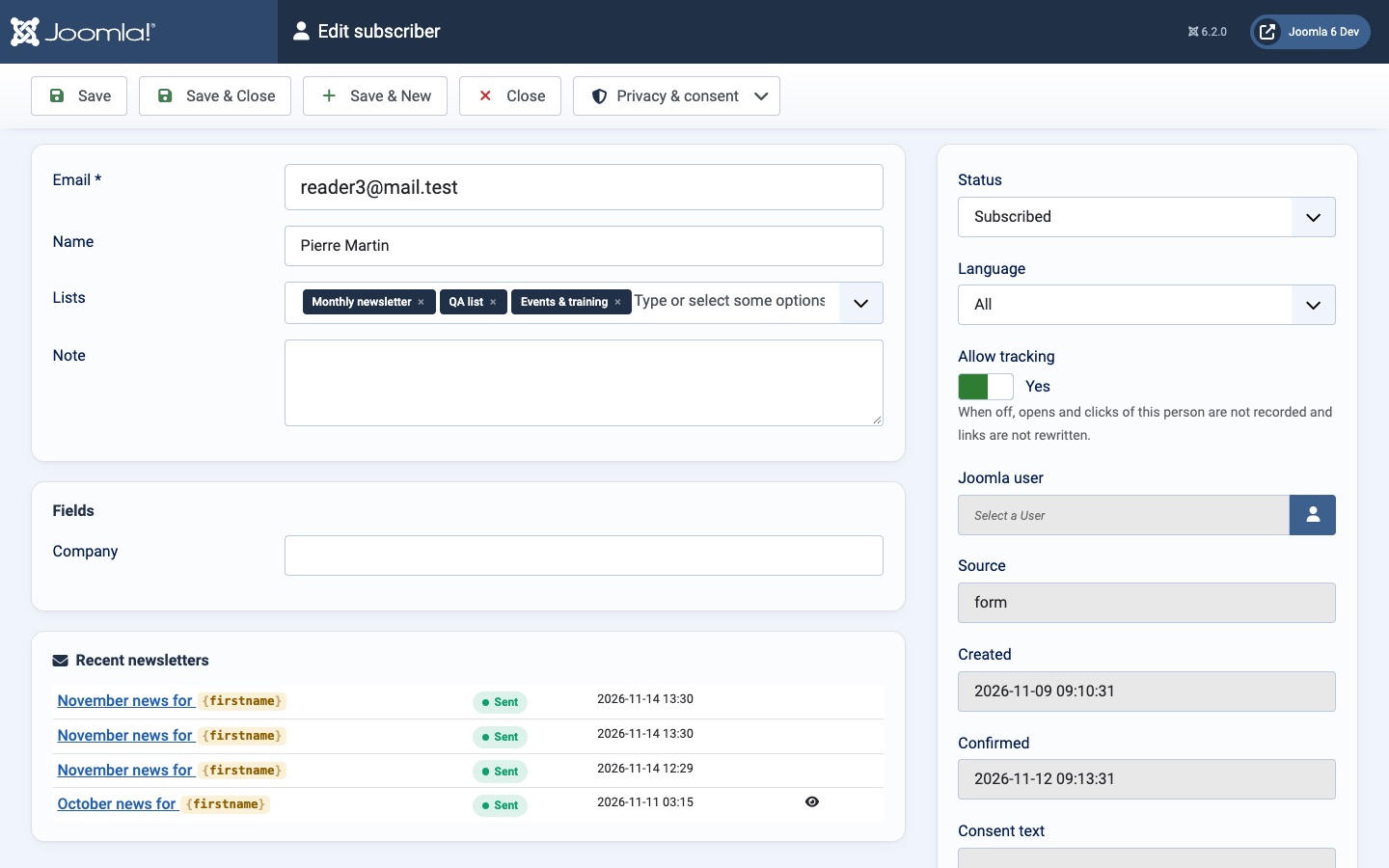
| Field | Description |
|---|---|
| Required and unique. | |
| Name | Used by the merge tags {{ name }}, {{ firstname }} and {{ lastname }}. |
| Lists | Lists the person is subscribed to. |
| Note | Internal note, never shown to the subscriber. |
| Fields | Custom subscriber fields. See Subscriber fields. |
| Status | See Subscriber statuses. |
| Language | The subscriber's language. |
| Allow tracking | When off, opens and clicks of this person are not recorded and links are not rewritten. Set by the subscriber's own consent choice. |
| Joomla user | Links the subscriber to a Joomla account. |
| Source, Created, Confirmed, Consent text, Consent given | Read-only record of how and when the person joined. |
Below the form, Recent newsletters lists what the person received (the eye icon means opened). On the right, Consent shows the consent history and Activity the latest opens and clicks; machine opens (for example by Apple Mail privacy protection) are marked automated.
Privacy & consent actions
The Privacy & consent button in the toolbar handles data-subject requests for one person.
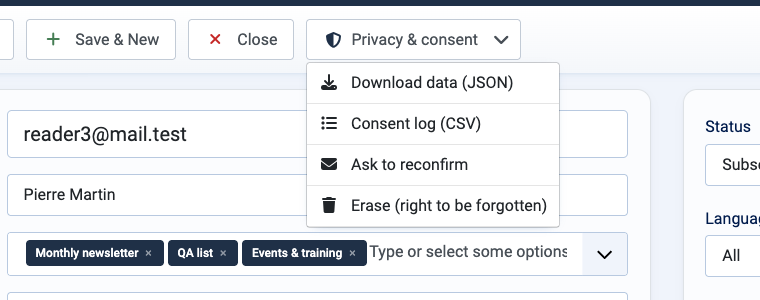
- Download data (JSON)
- Everything Semantyca holds about the person, for an access or portability request.
- Consent log (CSV)
- The person's consent records with wording, date and circumstances.
- Ask to reconfirm
- Sends a reconfirmation e-mail.
- Erase (right to be forgotten)
- Deletes the person and everything Semantyca holds about them. Only a hash of the address is kept so they are not re-imported. This cannot be undone.
Data downloads, consent-log exports and erasures are written to Joomla's User Actions Log.
- 5.1 Subscriber fieldsCustom subscriber fields with Joomla Fields.
- 5.2 Import and exportCSV import and export, import from AcyMailing and Semantyca NM.
Last updated 16 November 2026