
7 · Newsletters
Review and send
Pre-send checks, test messages, sending and scheduling.
The review screen is the last stop before sending: it shows the final message, counts the recipients, runs pre-send checks and lets you send a test, send now or schedule.
The Review and send screen
In the composer click Save & review.
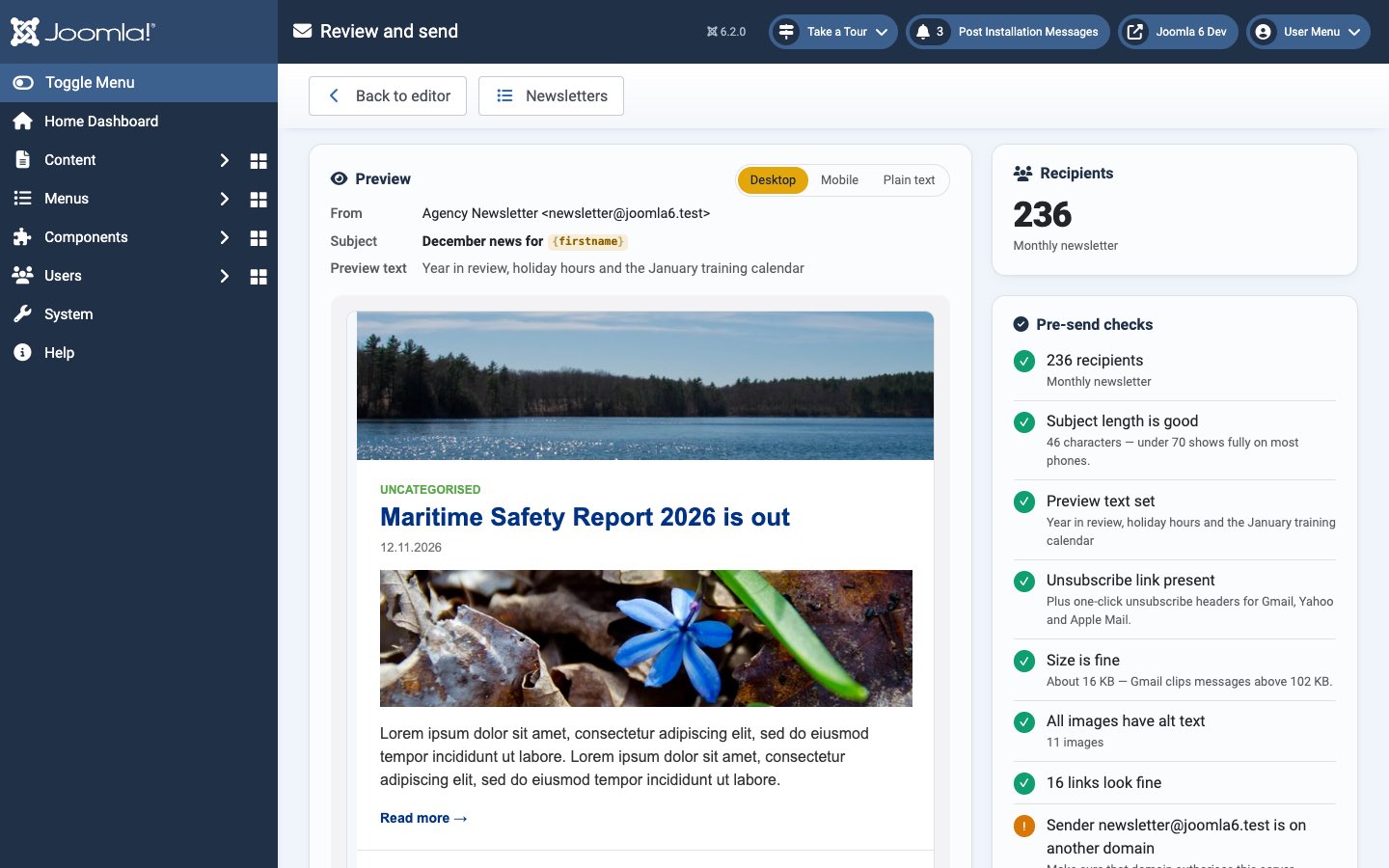
- Preview shows the sender, subject and preview text, and the message as Desktop, Mobile or Plain text. Semantyca creates the plain-text version automatically.
- Recipients is the exact number of people who will receive the newsletter, with the lists it goes to.
- Back to editor returns to the composer.
Pre-send checks
| Check | What to do when it warns |
|---|---|
| Recipients | No recipients: choose at least one list with subscribed members on Audience & sender. |
| Subject length | Subject may be cut off: shorten it to under 70 characters. |
| Preview text | No preview text: add a short teaser; otherwise inboxes show the first words of the e-mail. |
| Unsubscribe link | No unsubscribe link: add {{ unsubscribe_url }} to the template or set Add footer in Options. |
| Size | Large message: Gmail clips messages above 102 KB. Use fewer or shorter articles. |
| Alt text | … images without alt text: add alternative text, shown when images are blocked and read by screen readers. |
| Links | … suspicious links: empty, #, localhost or /administrator/ links will not work for readers. |
| Sender | Free-mail sender: Gmail, Yahoo, Outlook and similar addresses are rejected for bulk mail; use your own domain. Sender … is on another domain: make sure that domain authorises your server (SPF/DKIM). |
| Bounce address | No bounce address: configure bounce handling so dead addresses are cleaned up. |
Send a test
- Under Send a test, enter up to 10 addresses separated by commas (your own address is filled in).
- Click Send.
- Check the message in several mail clients, including on a phone.
Test messages are not tracked.
Send now or schedule
- Under Delivery choose Send now, or Schedule for later and pick a date and time.
- Click Send to … recipients and confirm.
When you send now, the Queue opens and shows the progress live. A scheduled newsletter appears in the Queue's Scheduled section and starts automatically at the chosen time. To change a scheduled newsletter, open its review screen and click Cancel schedule and return to draft.
Sending cannot be undone. You can pause or stop a newsletter while it is sending, but messages already delivered stay delivered.
Sending requires the Send newsletters permission (Options → Permissions).
Last updated 16 November 2026