
7 · Newsletters
Composing a newsletter
Build newsletters from articles, bespoke fields or freeform text.
The composer builds the newsletter while you watch: choose a template, add articles or your own content, and the preview on the right updates immediately.
Open the composer
Click New newsletter on the Newsletters screen or the dashboard, or click the subject of a draft. At the top enter:
- Subject
- Required. Merge tags work here, for example
November news for {{ firstname | colleagues }}. Under 70 characters shows fully on most phones. - Preview text
- Shown next to the subject in most inboxes. Keep it short (40–100 characters).
Toolbar: Save, Save & Close, Save & review (saves and opens Review and send) and Close.
Build from website articles
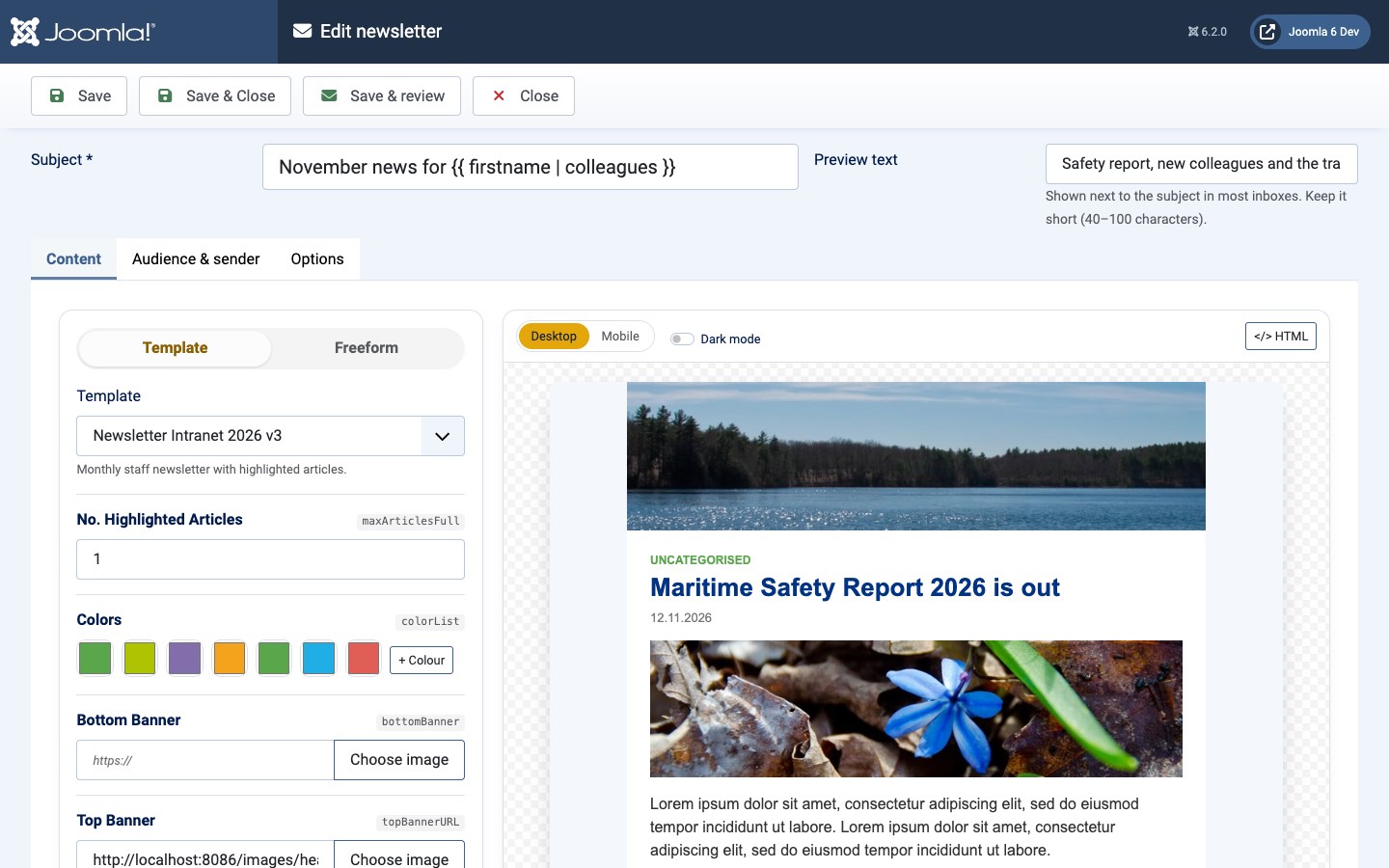
- On the Content tab keep Template selected and choose a template under Template.
- Fill in the template's fields (banners, colours, numbers, texts). The small grey name next to each label is the field's variable name.
- In the articles field, search by title or enter an article ID, or filter by category. Under Available, click + or double-click an article to add it.
- Arrange the articles under In this newsletter: drag them, or use Move up and Move down.
- To change how an article appears in this newsletter only, click the pencil (Edit for this newsletter), edit Title, Category label or Intro text and click Apply. The article on the website is not changed.
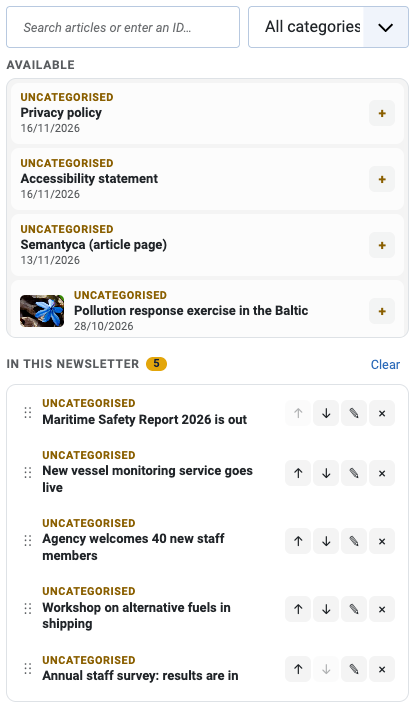
- Clear removes all selected articles; Load more shows further results.
- Which articles are offered and how their links are built is set in Options → Articles.
- Reset fields to template defaults (at the bottom) restores the template's default values.
- When you switch to another template, fields with the same name keep their values.
Build with bespoke content
Templates do not need website content. With a template made of text, image, button and colour fields, such as the starter Announcement, you simply fill in the fields.
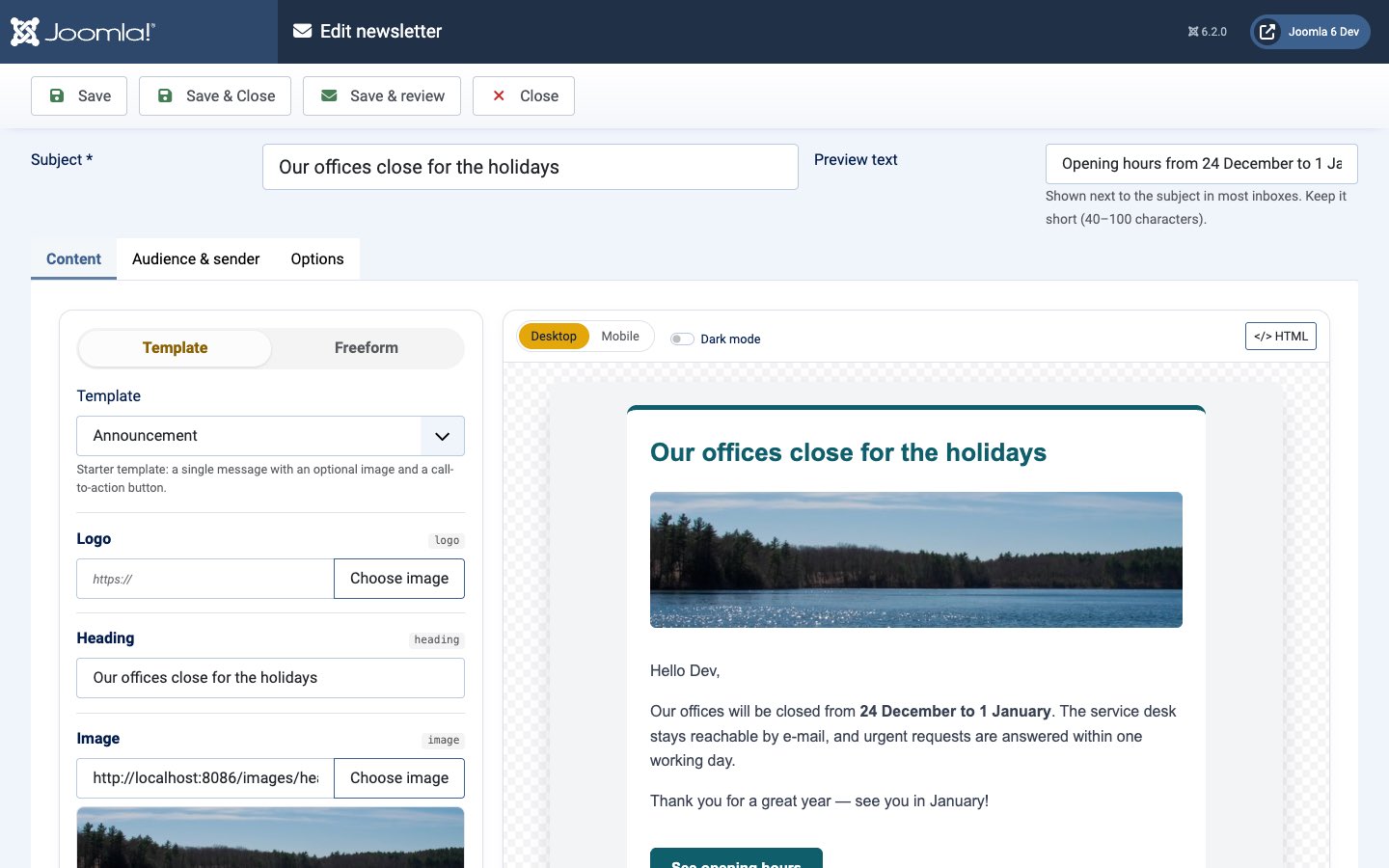
Rich text fields have a small editor with formatting, links, images, an Insert merge tag button and an HTML view.
Freeform mode
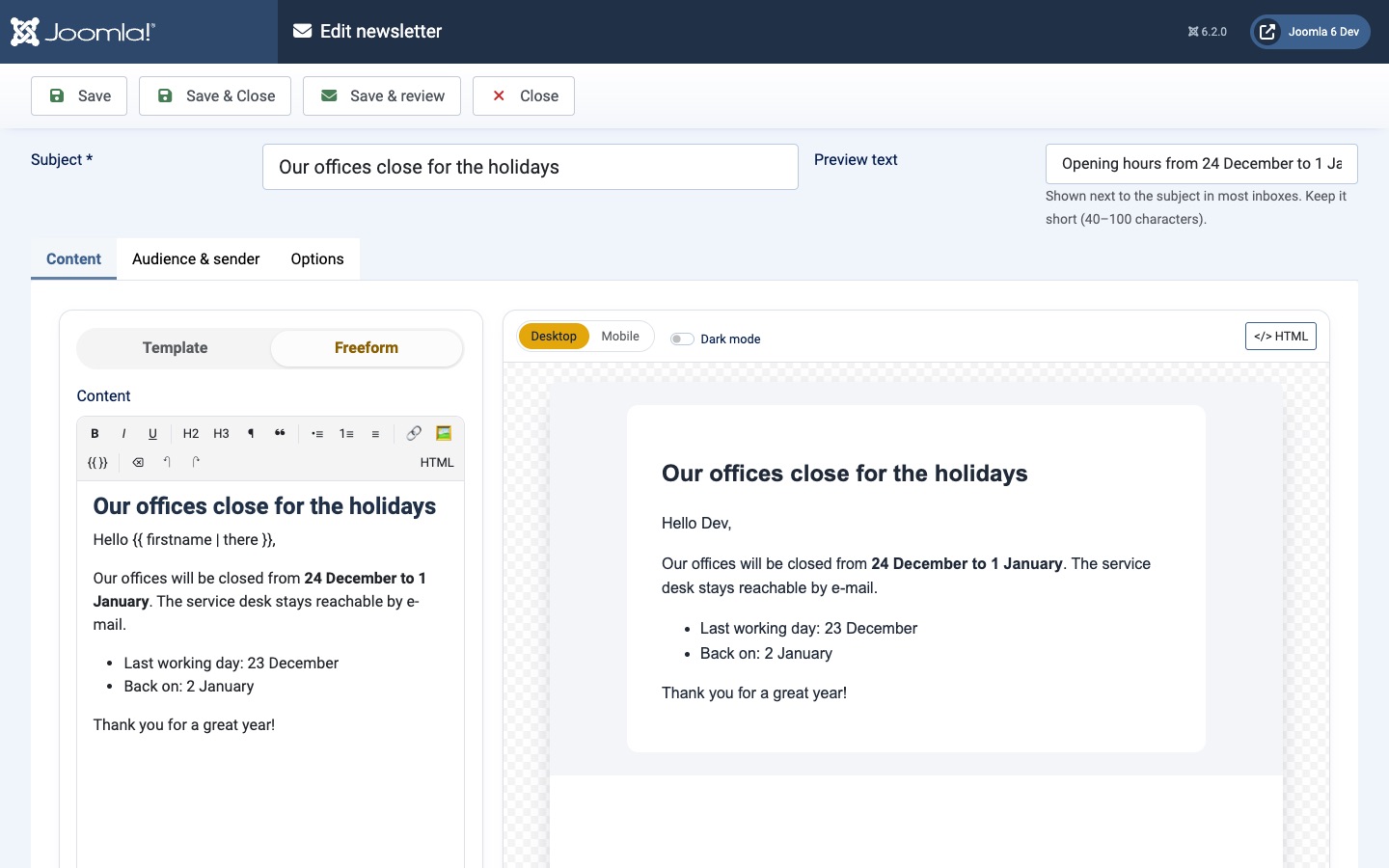
Click Freeform to write the whole newsletter in the editor without a template. The content of the other mode is kept, but only the selected mode is sent.
Preview
- Desktop / Mobile switch the preview width; Dark mode simulates a dark mail client.
- HTML shows the generated code, with Copy.
- Merge tags are shown filled in with your own details as an example.
Audience & sender
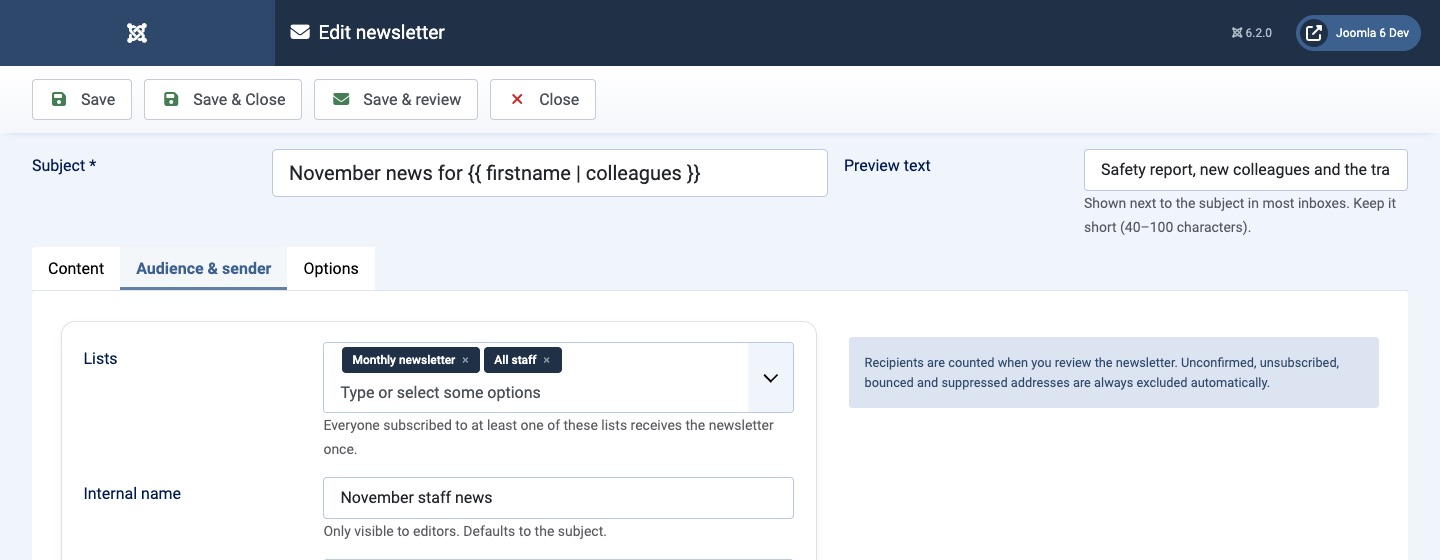
- Lists
- Everyone subscribed to at least one of these lists receives the newsletter once. Unconfirmed, unsubscribed, bounced and suppressed addresses are always excluded. Recipients are counted on the review screen.
- Internal name
- Only visible to editors. Defaults to the subject.
- From name, From e-mail, Reply-to
- Override the sender for this newsletter. Leave empty to use the values from Options → Sender.
Options tab
- Track opens / Track clicks
- Measure opens and clicks for this newsletter. Recipients who did not allow tracking are never tracked, whatever you choose here.
- Show in public archive
- After sending, the newsletter appears in the Newsletter archive menu item (without personal data).
Unsaved changes
The composer keeps a copy of unsaved edits in your browser. If the page is closed or crashes, reopening the newsletter shows This browser has unsaved changes to this newsletter. Click Restore to continue where you left off, or Discard.
Last updated 16 November 2026