
5 · Subscribers
Import and export
CSV import and export, import from AcyMailing and Semantyca NM.
Bring existing subscribers into Semantyca from a CSV file, directly from AcyMailing or from the earlier Semantyca NM, and export subscribers as CSV.
Import a CSV file
- Open Subscribers and click Import (or Import on the dashboard).
- Under 1. Choose your data, choose a CSV file (up to 50 MB) or paste addresses into …or paste data. The first row may contain column names; separators and character encoding are detected automatically. Click Continue.
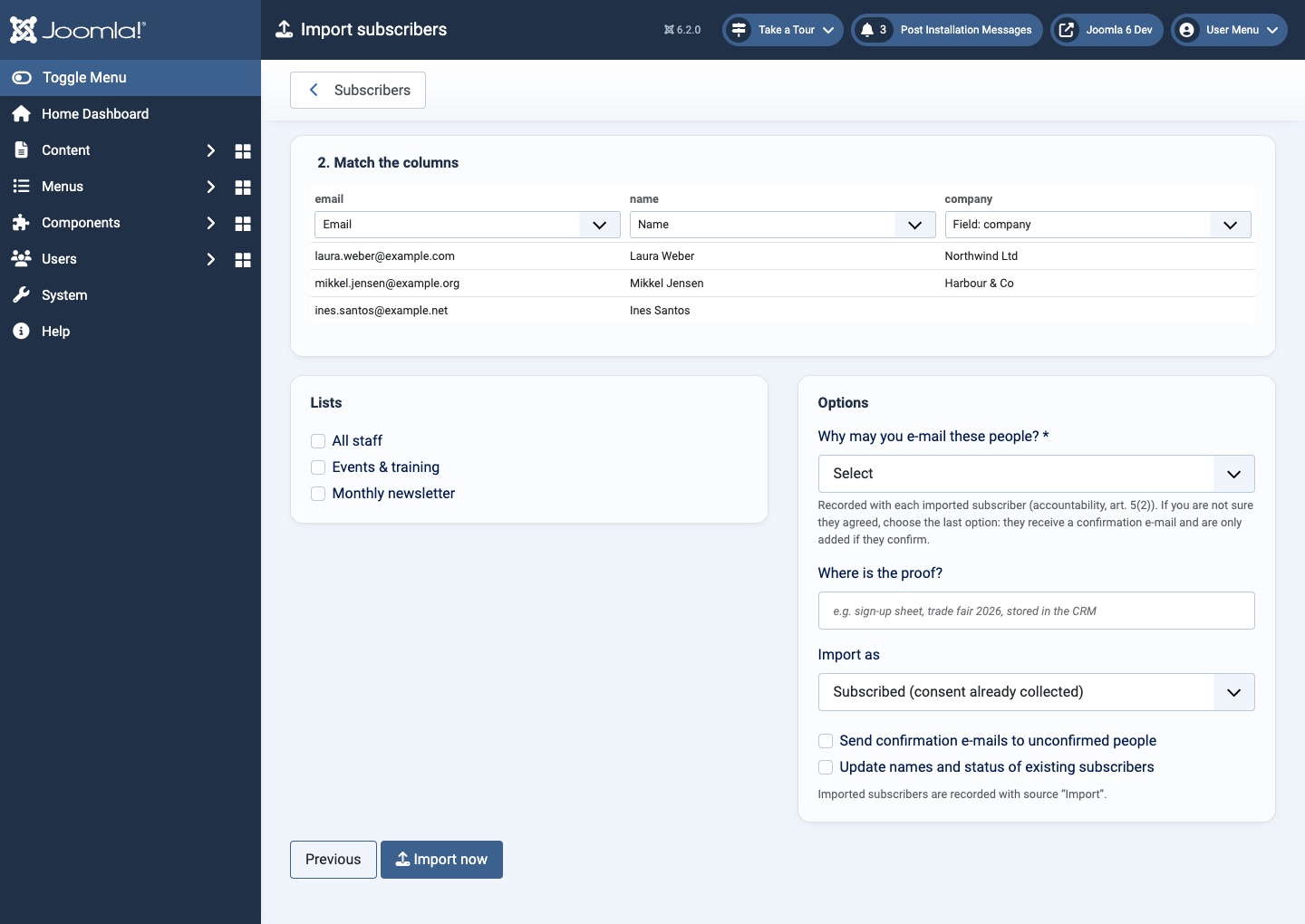
- Under 2. Match the columns, choose what each column contains: Email, Name, Language, Status, a subscriber field (Field: …) or - Ignore -. The first rows are shown as a preview.
- Tick the Lists the people should join.
- Answer Why may you e-mail these people? and describe Where is the proof? (see below).
- Set the remaining options and click Import now.
| Option | Description |
|---|---|
| Why may you e-mail these people? | Required. Recorded with each imported subscriber as evidence: They gave consent elsewhere, and I can prove it; Existing customers, about similar products …; Members or staff, for communications they expect as such; or Not sure — ask them to confirm (double opt-in). With the last option people are imported as unconfirmed and receive a confirmation e-mail; they are added only if they confirm. |
| Where is the proof? | A short note, for example "sign-up sheet, trade fair 2026, stored in the CRM". |
| Import as | Subscribed (consent already collected) or Unconfirmed (they must confirm first). |
| Send confirmation e-mails to unconfirmed people | Sends the double opt-in e-mail to people imported as unconfirmed. |
| Update names and status of existing subscribers | Without it, existing subscribers are only added to the chosen lists. |
When the import finishes, a message reports how many people were new, updated, already present, invalid and suppressed.
Export subscribers
- On Subscribers, set the search and filters to the people you want (for example one list and status Subscribed).
- Click Export. A CSV file of the filtered subscribers is downloaded.
Exporting requires the Export subscribers permission. Values are written so that spreadsheet programs do not execute them as formulas.
Import from AcyMailing
When AcyMailing is installed on the same site, the dashboard and the import screen offer Import from AcyMailing. Semantyca reads AcyMailing's tables directly; nothing is changed in AcyMailing.
- Click Review and import. The screen shows how many AcyMailing subscribers, lists, confirmed and unconfirmed people were found.
- Under Lists, choose where each AcyMailing list goes: an existing Semantyca list, New list with the same name or Do not import.
- Under Custom fields, map each AcyMailing field to a subscriber field, a New subscriber field or Do not import.
- Choose what to do with People who never confirmed their address: leave them out (recommended) or import them and send a confirmation e-mail.
- Tick Keep AcyMailing's tracking choices only if AcyMailing asked subscribers to agree to tracking.
- Click Import subscribers. Large lists are imported in batches with a progress screen and a summary at the end.
- Memberships keep their original dates, language, linked Joomla account and last open and click.
- AcyMailing's double opt-in date and IP become consent records with the original timestamps.
- Opt-outs always win: people who left a list are imported as opted out of it; people who left everything as unsubscribed; deactivated people as blocked.
- Running the import again is safe: existing subscribers are updated, never duplicated.
If AcyMailing runs on another site, export a CSV from AcyMailing and use the CSV import instead.
Upgrading from Semantyca NM
If the tables of the earlier Semantyca NM component (com_semantycanm) are present, the dashboard shows Semantyca NM data found. Click Import now to copy its templates (with fields), newsletters and mailing lists (as user-group lists), plus aggregate send and open figures. The old component and its data are left untouched; uninstall it when you are satisfied.
Last updated 16 November 2026